

Pipedrive Integration
The CarrierSource + Pipedrive Integration enables you to sync your CarrierSource Shipper Intent Data directly to your organizations in Pipedrive so that you can create activities, build workflows, and more.
About CarrierSource Shipper Intent Data
CarrierSource Shipper Intent Data captures enriched data about shippers searching for capacity across CarrierSource. Shipper Intent Data signals can be generated by a variety of shipper actions, including interacting with your company’s CarrierSource profile page, searching for services that you provide, and many more. This data enables your sales, marketing, and account management teams to identify when a shipper prospect or customer is in the market for your services.
How CarrierSource Shipper Intent Data auto-maps to Pipedrive
The CarrierSource Shipper Intent Pipedrive integration creates an Activity for the Pipedrive company that matches the domain of the shipper intent signal. If the integration cannot find a matching company in Pipedrive for the shipper intent signal, then the Activity is not created. Multiple Shipper Intent signals can be mapped to a single Pipedrive company, but a single signal cannot be mapped to multiple Pipedrive companies.
If CarrierSource cannot match the signal to an existing company in Pipedrive, a new company is not created.
Implementation
This section details the steps you need to take to implement the CarrierSource + Pipedrive integration.
Authentication and CarrierSource Installation
-
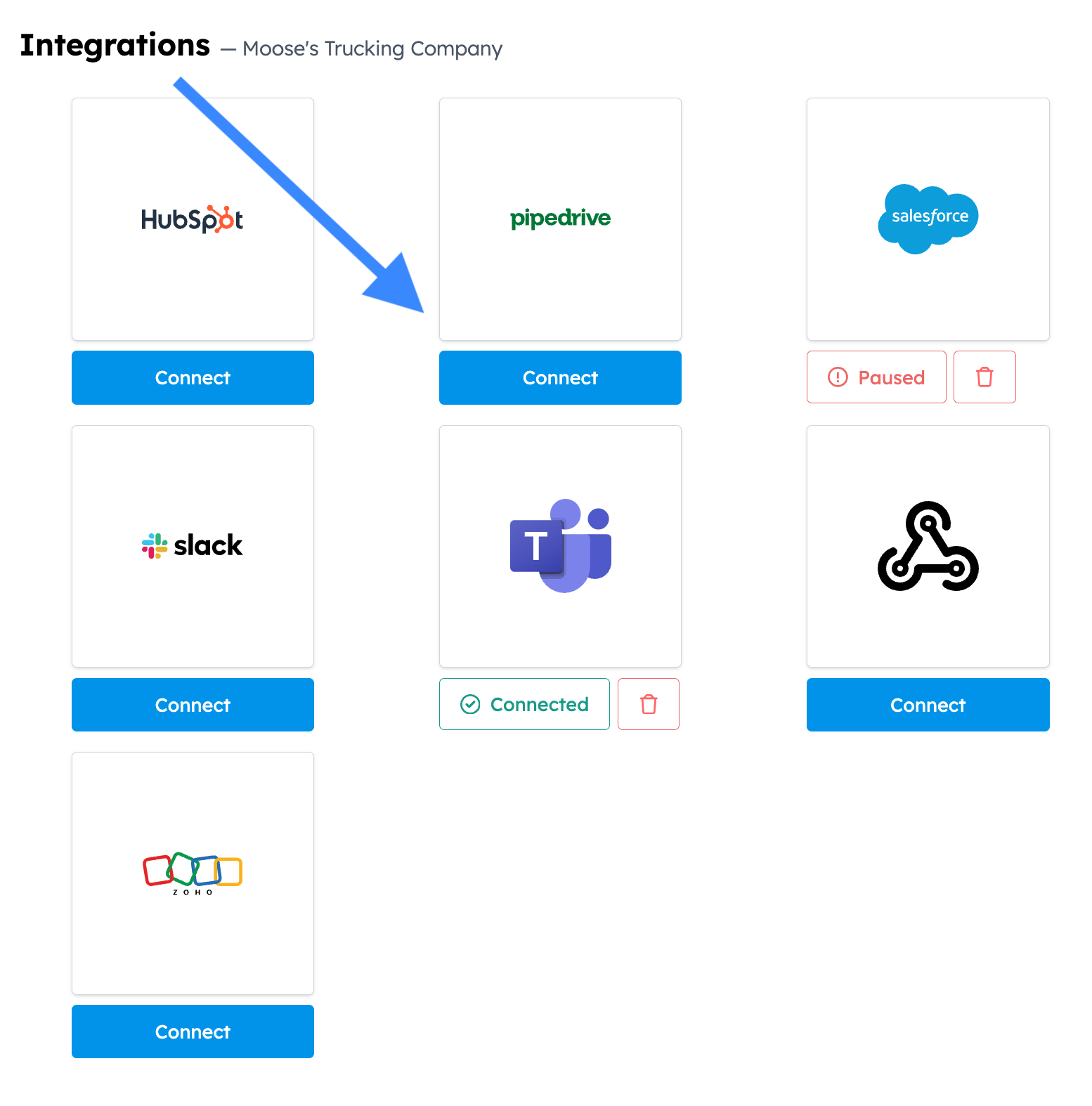
Go to your CarrierSource profile dashboard and access Shipper Intent → Integrations.
-
Click Connect in the Pipedrive Integration tile.
-
Log in to Pipedrive when prompted
-
Confirm CarrierSource’s access permissions to your Pipedrive environment, then select Allow and Install to complete the authentication process.
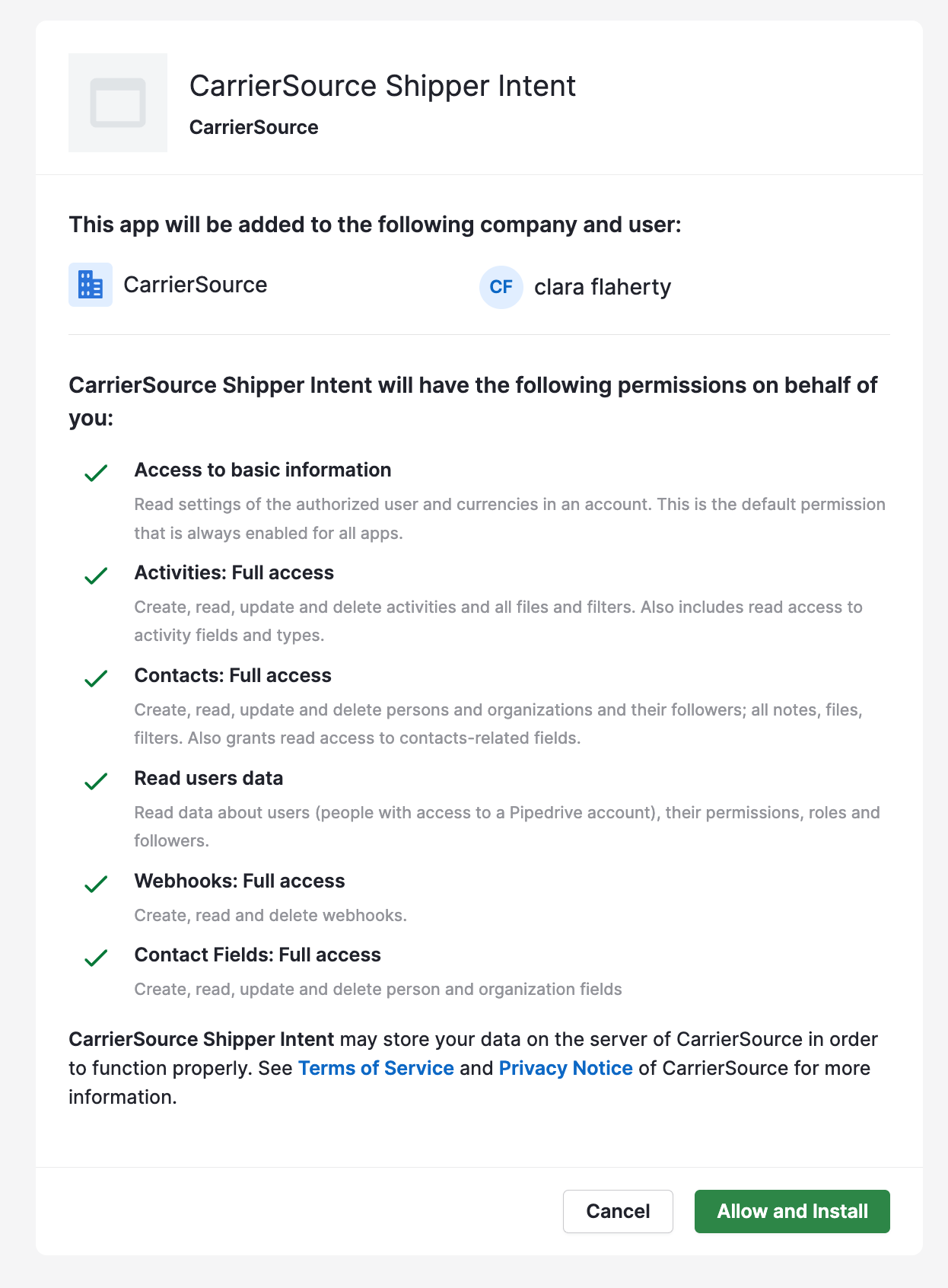
Confirm CarrierSource app Installation
-
Go to your CarrierSource profile dashboard and access Shipper Intent → Integrations.
-
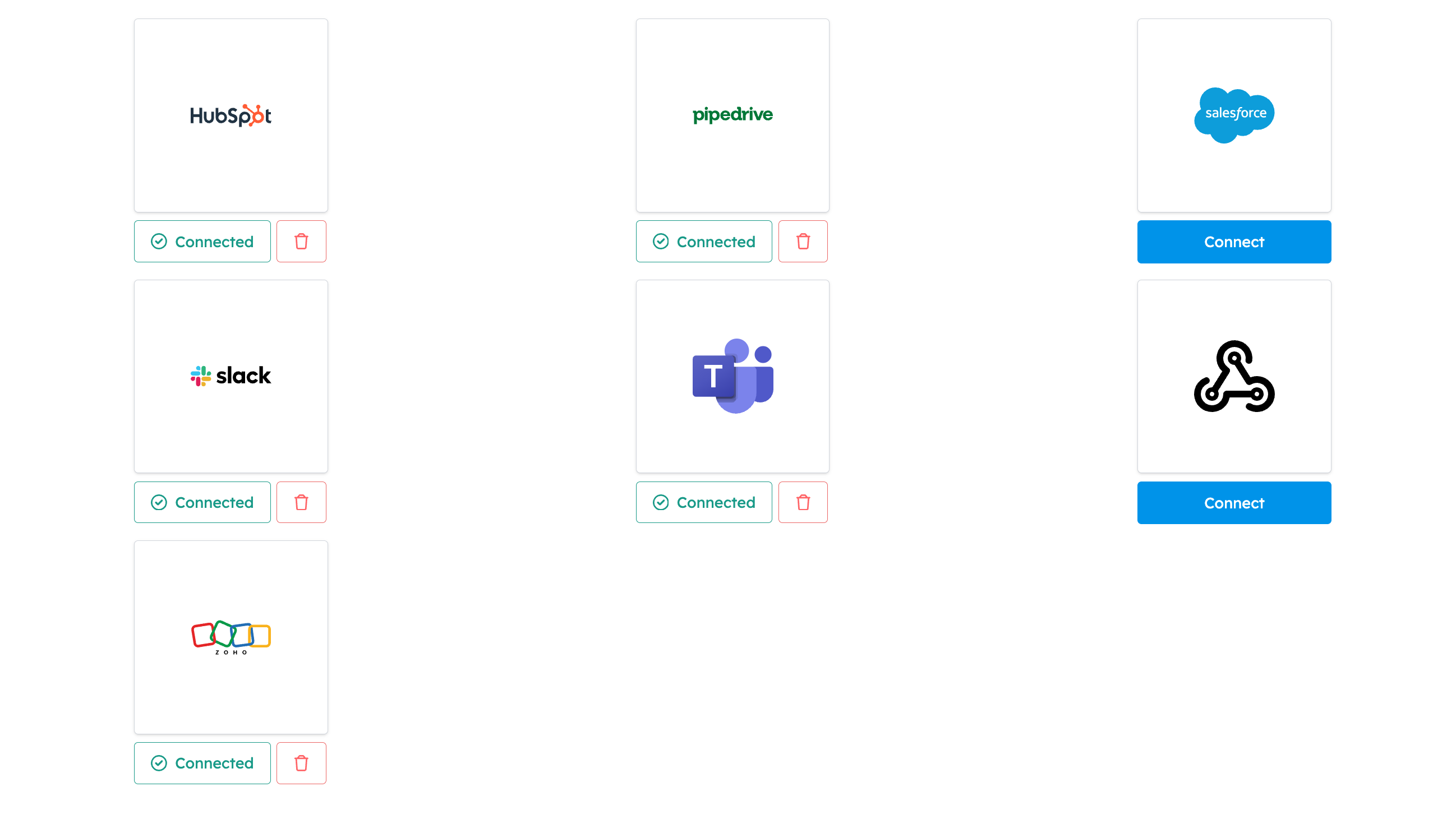
Refresh the page and check that the Pipedrive Integration tile now says Connected.
Select the feed(s) you want to sync into Pipedrive
-
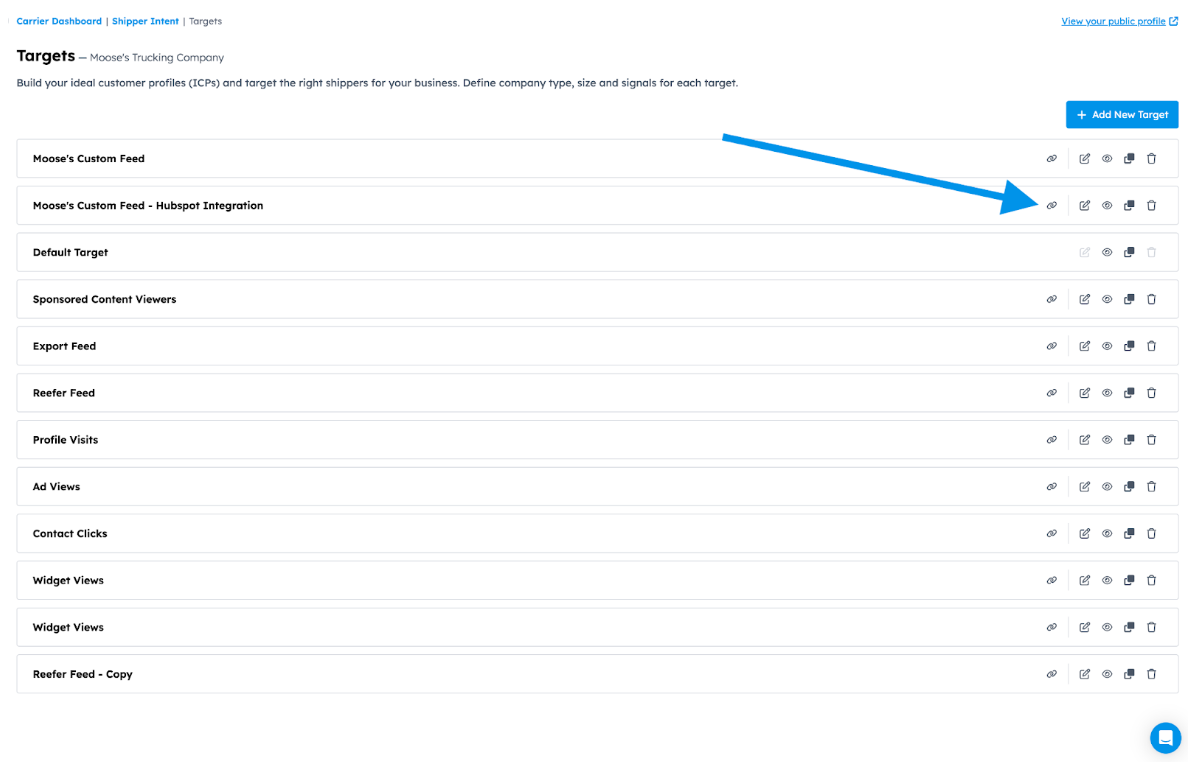
Go to your CarrierSource profile dashboard and access Shipper Intent → Targets.
-
Click the Integrations symbol in the feed you want to connect.
-
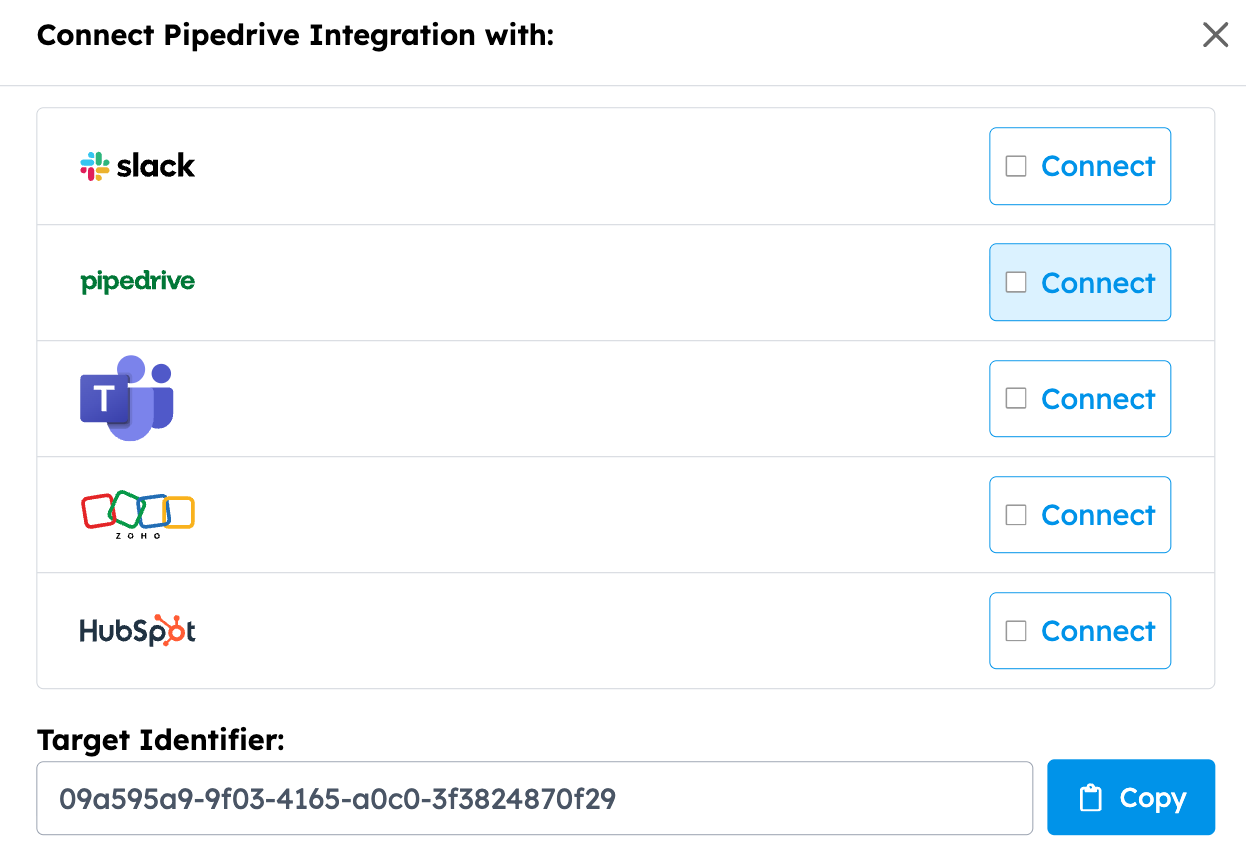
Select Pipedrive as the tool you want to connect.
-
Select at what interval you want to receive signals. If you select Daily, you’ll receive all signals that came through the previous 24 hours at 12AM CST. If you select Immediate, you’ll receive signals in real-time.
-
Select what kind of Activity Type you want Shipper Intent Data to come through as. Some customers end up creating a custom "CarrierSource Shipper Intent" Activity Type within Pipedrive for this.
Viewing Shipper Intent Data in Activity Timelines
-
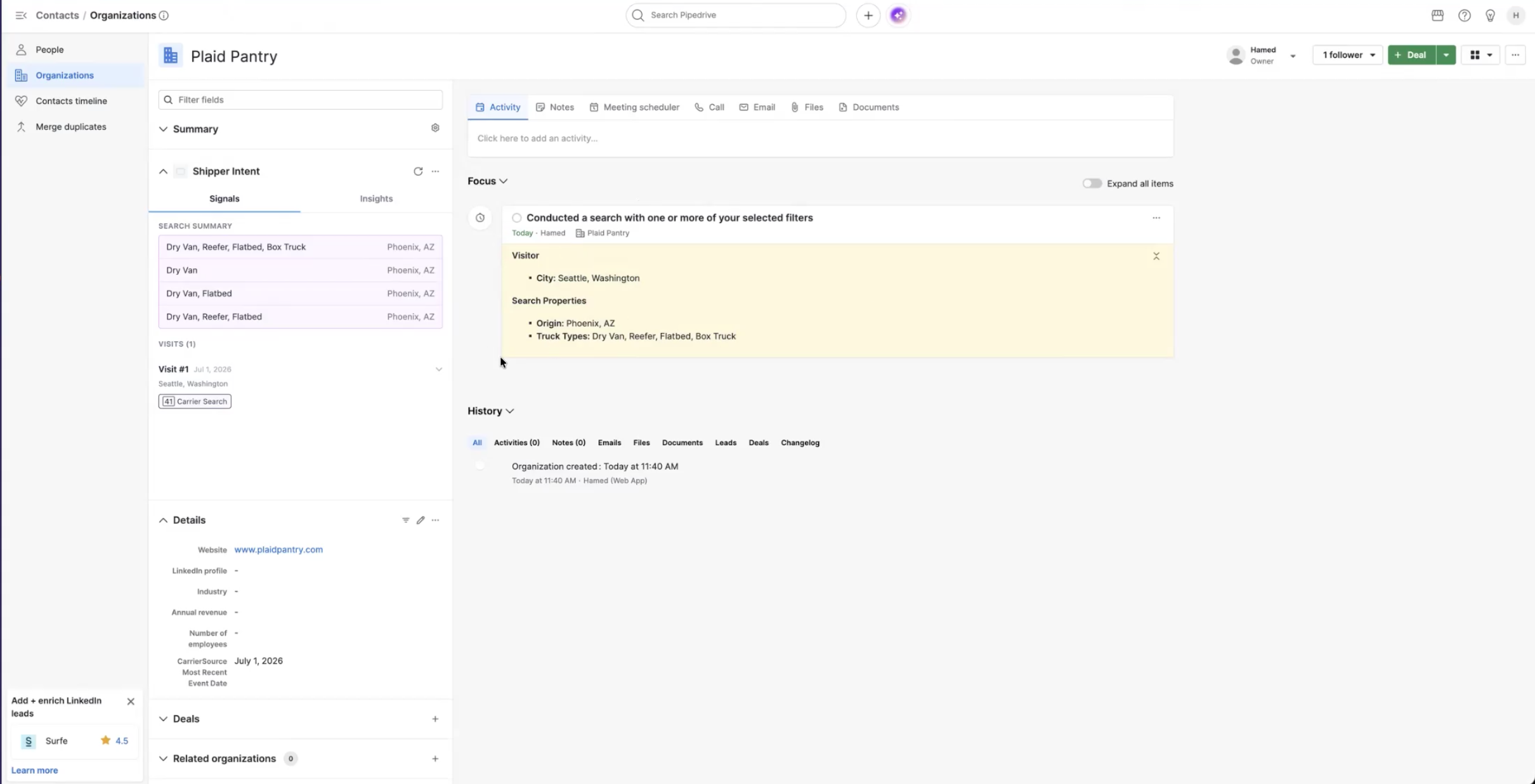
Navigate to an Organization.
-
From the Activity section, you'll see new signals appear on the timeline in real time as they come in.
Viewing Which of Your Organizations Have Received Signals
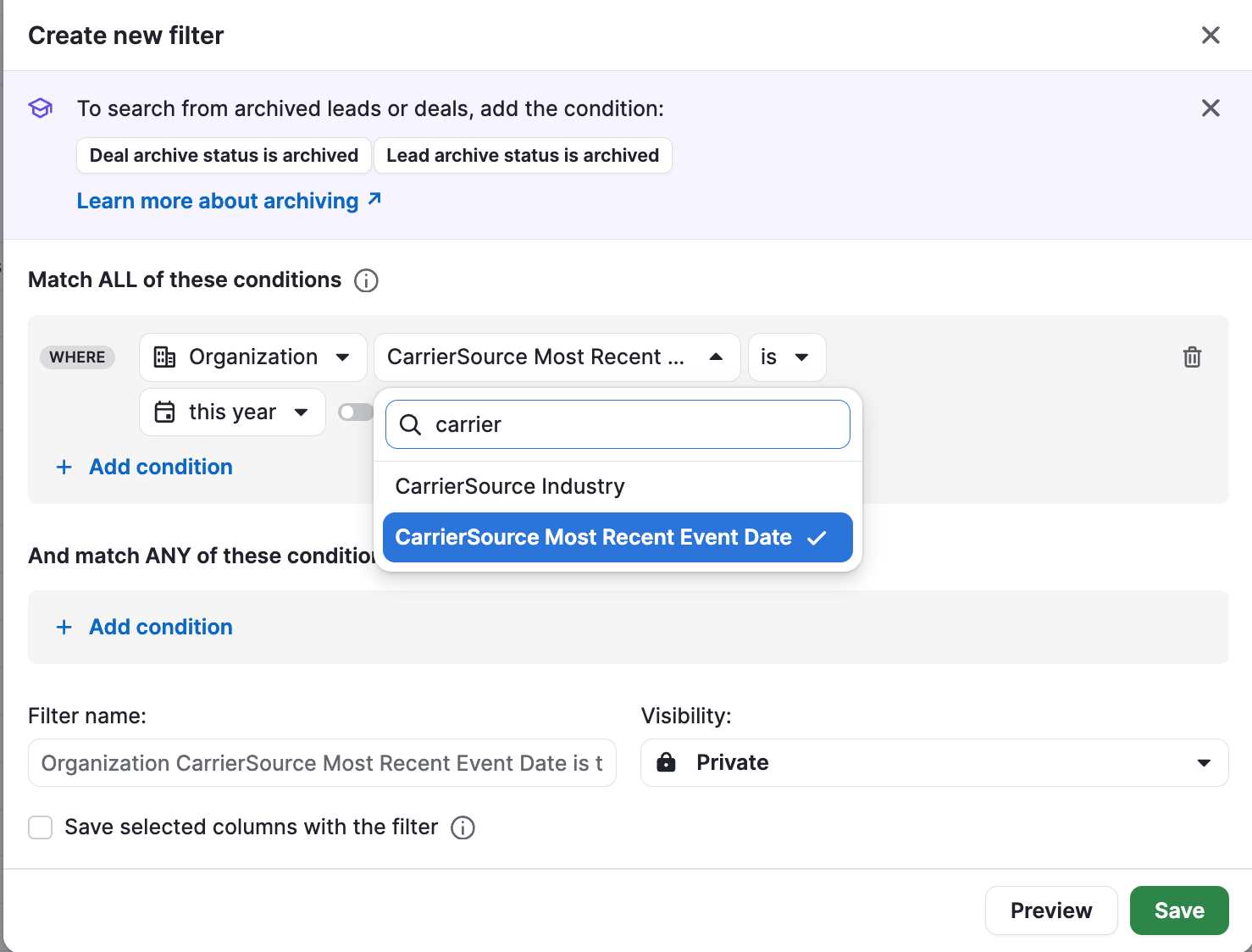
You will have thousands of company records already in your Pipedrive, but you might want to see which of them have received intent signals. For example, perhaps you are trying to determine which of your prospects have most recently been searching for capacity. Or you want to see all current customers who have been on CarrierSource.
-
Navigate to your list of Organizations in Pipedrive by clicking Contacts in the side left panel, then click Organizations.
-
Click on Filter, in the top right corner, click Add new filter then search for the CarrierSource Most Recent Event Date.
Generating and Viewing AI-Powered Research Agent Insights
-
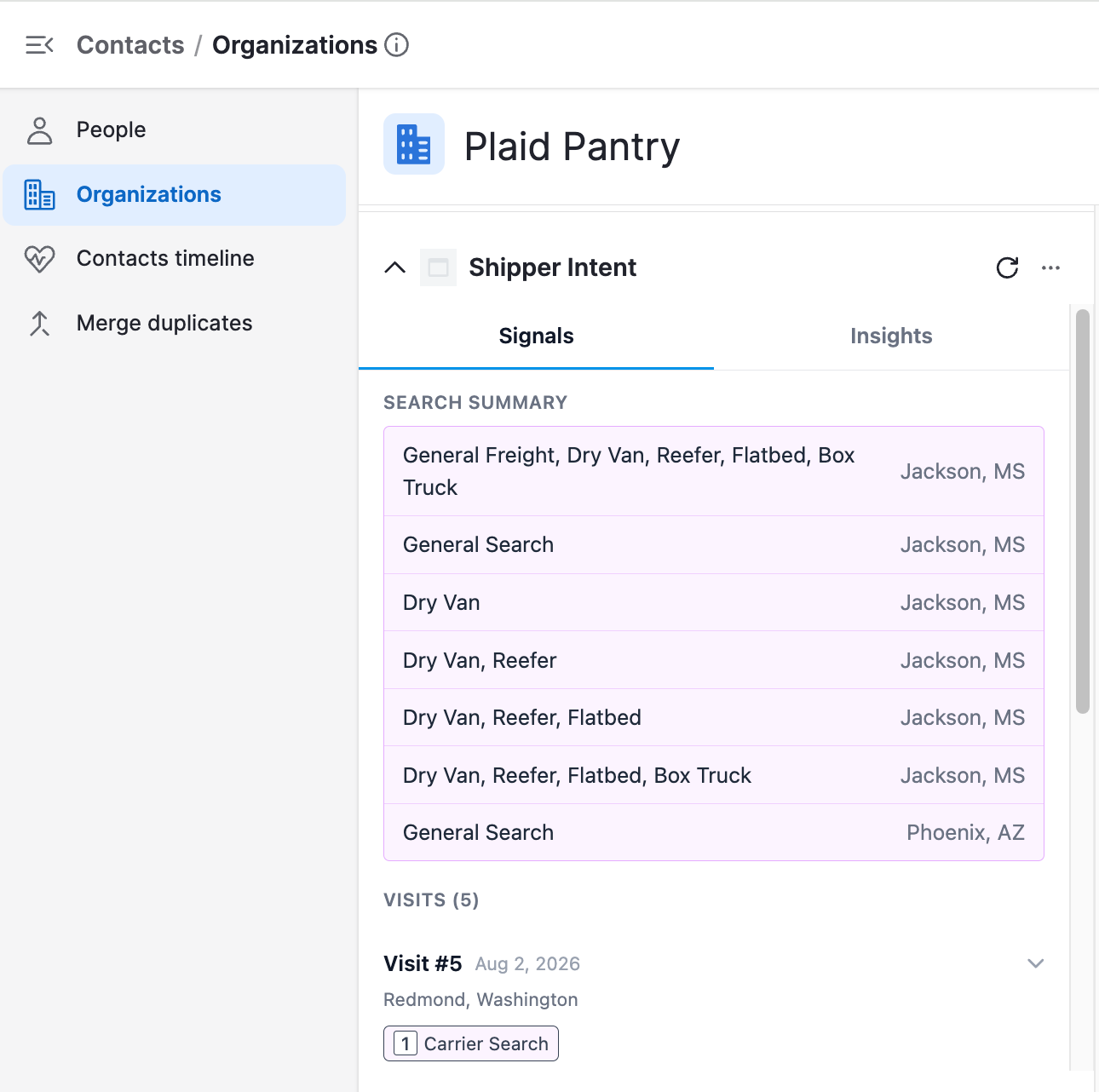
Once you’ve connected CarrierSource Shipper Intent data to Pipedrive, you'll also be able to generate and view AI-powered research agent insights. Navigate to any organization with a CarrierSource signal to see a synopsis of that company’s activity that matches the target feed you set up. This synopsis will appear on the "Signals" tab.
-
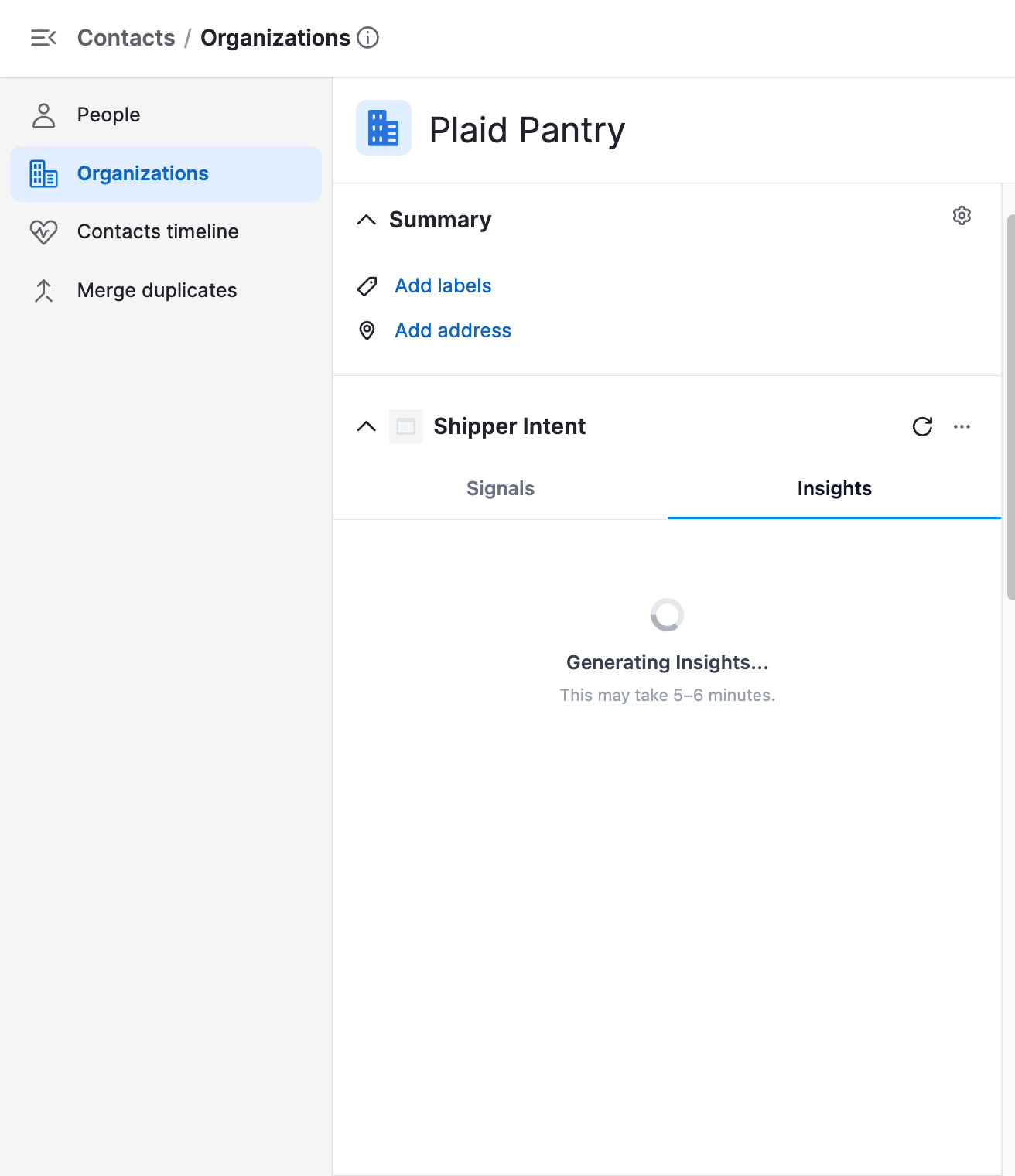
To generate new insights for a company, click the Insights tab within the CarrierSource Shipper Intent card, then click Generate Insights. You'll see a "Generating Insights" message confirming your request was received. Please note it could take up to 5 minutes for insights to fully generate.
-
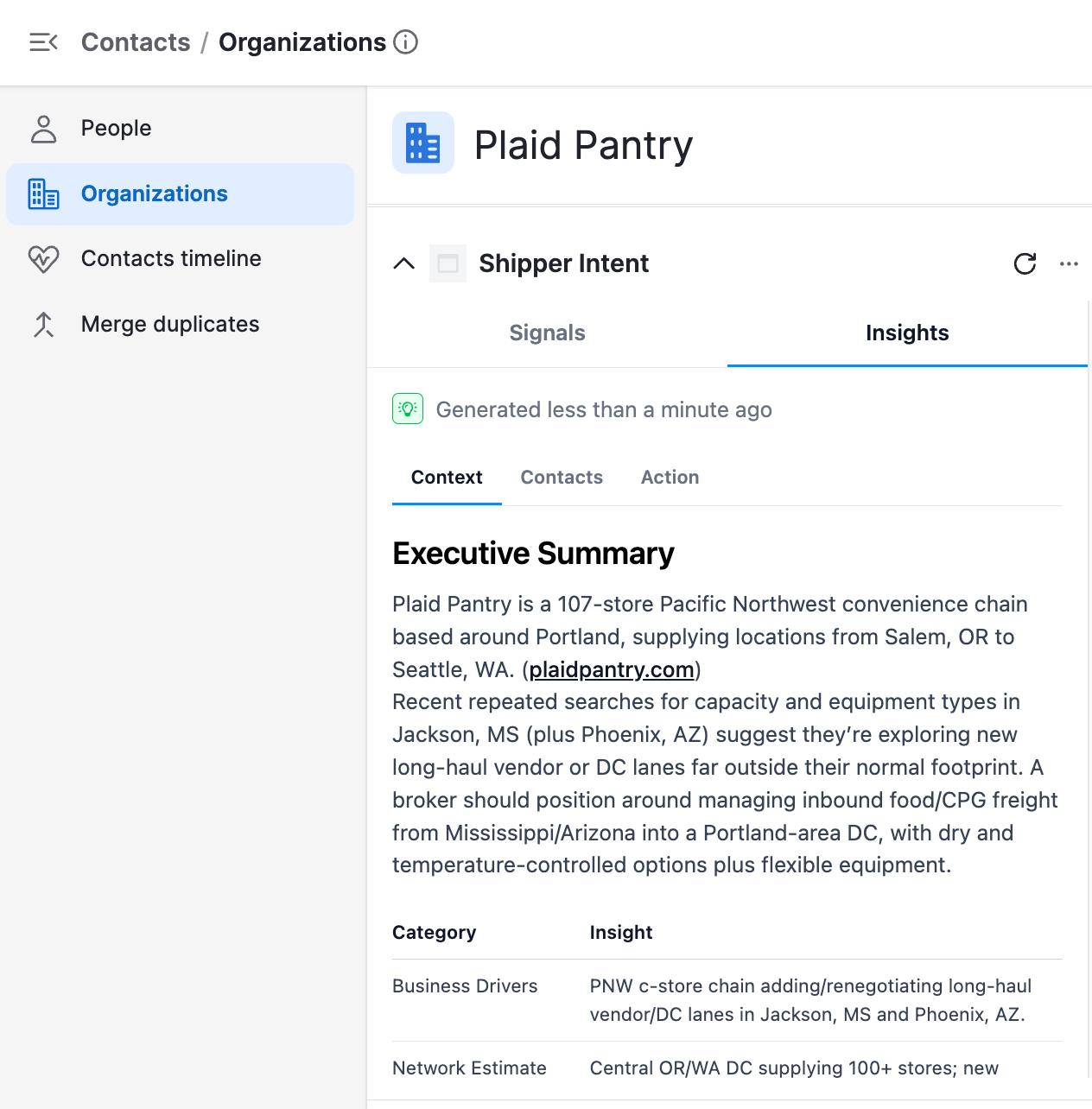
Once insights have finished generating, you'll be able to view the "Context" behind the company's search activity, the "Contacts" most likely behind the search, and the recommended "Action" to take to connect with that company.
Conclusion
The CarrierSource + Pipedrive integration gives your organization real-time visibility into shipper search behavior, right inside your CRM. By syncing CarrierSource Shipper Intent Data directly into Pipedrive, you can automatically enrich account records, prioritize outreach based on live intent signals, and trigger smart workflows to accelerate pipeline generation and customer expansion.
Reach out to our team if you'd like help setting it up or customizing your workflows!
Updated 3 months ago